Table of Contents
- Background
- Summary of the approach
- Detailed steps
- Troubleshooting (if the system fails to boot)
- Final result
- Notes and caveats
Background
My /nix partition was running out of space due to the growth of packages and store entries. I moved /nix to another disk (an NVMe) to regain space. The steps below describe the approach I used, the key points to watch for, and how I recovered when the system failed to boot.
Summary of the approach
High-level steps:
- Update the system’s mount configuration to mount /nix on the new disk.
- Copy the contents of the current /nix into the new mount point (including /nix/var and /nix/store).
- Verify the mount configuration using nix –eval.
- Important: /nix/store must be synchronized again just before switching, because the system will generate new content there while you prepare the change.
- Reboot to load the new configuration.
- If the system fails to boot, recover by mounting the disk from another OS or by rolling back to a previous NixOS generation and fixing the configuration.
Below I expand each step with practical considerations and troubleshooting tips.
Detailed steps
- Modify the mount configuration
- Update your system’s mount configuration so that /nix mounts on the new disk/partition. Depending on your setup this could mean changing /etc/fstab or the NixOS configuration (for example, configuration.nix or your flake’s system configuration) to point /nix at the new device/UUID.
- Make sure the new filesystem is formatted and ready to mount.
- Copy /nix contents to the new location
- Before switching mounts, copy the current contents of:
- /nix
- /nix/var
- /nix/store
- Ensure ownership, permissions, and special attributes are preserved during the copy.
- Note: you will need to re-sync /nix/store immediately before the final reboot (see step 3).
- Before switching mounts, copy the current contents of:
- Verify the configuration
- Run nix –eval to check whether the new mount configuration is acceptable to Nix tools. This is a sanity check for the configuration.
- Re-sync /nix/store right before the switch:
- /nix/store is critical because build outputs and other store items are created there. Any delay between the copy and the reboot may let new content be generated in the old /nix/store, so perform a final synchronization immediately before rebooting into the new configuration.
- Reboot and load the new configuration
- Reboot the machine so the system mounts /nix from the new device and uses the copied data.
Troubleshooting (if the system fails to boot)
If the system does not start correctly after the change, you have a few recovery options:
- Use another operating system (dual-boot) or a live environment to mount the disks and continue editing the mount configuration or to re-sync data.
- Use NixOS rollback to boot a previous, known-good generation:
- At the NixOS boot menu select a prior generation that successfully booted.
- Once booted, fix the mount configuration and re-sync /nix as necessary.
In short: either repair the mounts from an alternate environment, or roll back to a generation that boots and then correct the configuration.
Final result
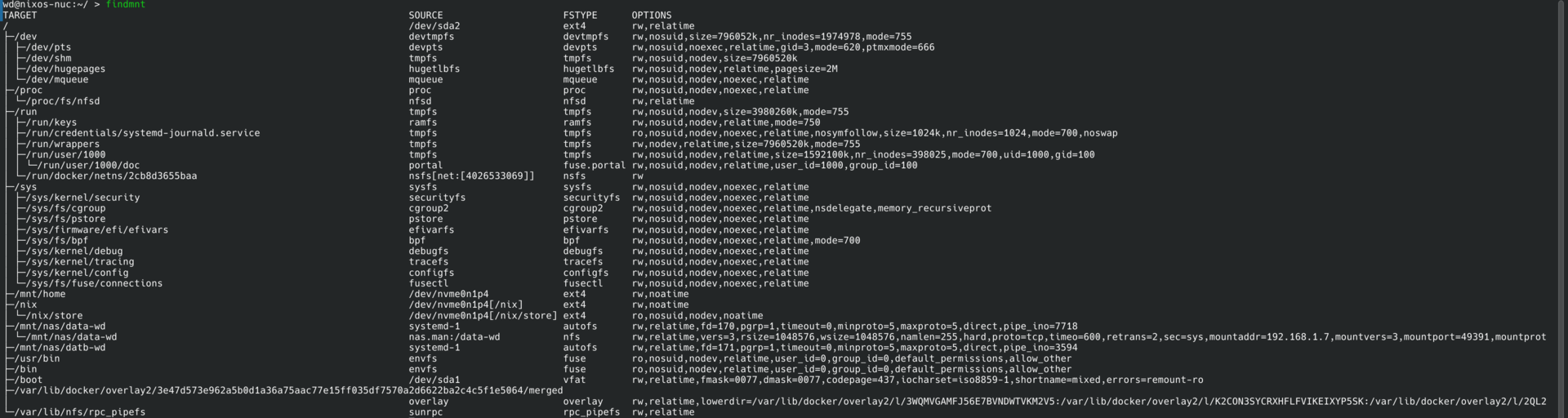
I successfully moved /nix to the new disk and the system boots normally with the new mount. (Screenshots showing the final mount layout were attached in the original post.)

Notes and caveats
- If you later decide to move /nix back to the original disk, you must copy/sync the contents back to the original /nix path before switching mounts again.
- The crucial point is to always keep /nix/store synchronized immediately before switching mounts, because Nix will write to the store continuously while you work.
This procedure assumes you are comfortable editing system mount configuration and copying filesystem data with preserved attributes. Follow standard precautions: backups, verifying filesystem integrity, and ensuring you have a recovery method (live USB or an alternate boot entry) before making changes.